
CorelDRAW to G-code & DXF for CNC
Turn CorelDRAW paths into G-code for 2D CNC cutting, or export DXF with real arcs for CAM software — straight from CorelDRAW.
Quick answer
Select your paths and open eCut → G codes. Set the tool, cut type (along the path or offset by half the tool diameter), depth, number of passes and bridges, then export G-code. For other CAM software, eCut DXF Export saves DXF (R11/R12) with lines and arcs, in mm or inches.
What it does
G-code for 2D cutting
Generates G-code for selected paths: plotting along the path or 2D cutting with an offset of half the tool diameter.
Depth, passes and order
Set total depth and pass count, change the cutting direction for inner and outer curves, and cut inner shapes before outer ones.
Bridges (tabs)
Adds bridges on the last pass so parts don’t fly loose. A separate Create bridges tool adds them to any path.
Tools and multi-head machines
Save tools with diameter, feed, rapid and plunge speeds, spindle direction, safe and parking heights. Up to 4 heads; assign jobs to heads by colour.
Clean DXF export
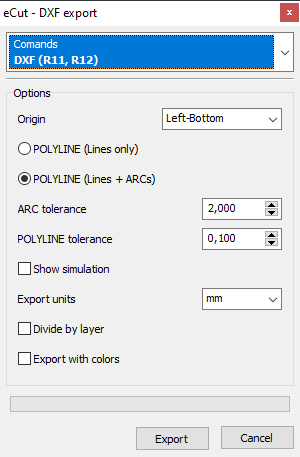
Exports DXF (R11, R12) or HPGL using arcs + polylines or polylines only, with arc/line tolerance, origin alignment and mm/inch units.
How to use it
- 1Convert everything to curves and select the paths to cut.
- 2Open eCut → G codes. Add a tool (diameter and speeds).
- 3Create a job: cut type, depth, passes, bridges.
- 4Set machine size and units in CNC parameters.
- 5Export the G-code and load it into your CNC controller.
New to eCut? Install it in CorelDRAW first — it takes about 10 minutes.
Screenshots


Who it's for
- CNC router shops cutting ACP, acrylic, MDF and wood
- Sign makers who design in CorelDRAW but cut on CNC
- Anyone needing clean DXF with arcs for CAM software
- Multi-head machine owners
Part of one eCut license
This tool comes with eCut together with true-shape nesting and 40+ other functions — one lifetime license (₹8,500), CorelDRAW X3–2026, free AnyDesk setup in India. See all functions.
Questions
How do I convert a CorelDRAW (CDR) file to G-code?
With the eCut plugin: select your paths, open eCut → G codes, set the tool, depth and passes, and export. eCut writes G-code for 2D cutting directly from CorelDRAW.
Does eCut compensate for the cutter (tool) diameter?
Yes. In 2D cutting mode it offsets the path by half the tool diameter. The developer recommends building offset curves in CorelDRAW first for complex shapes and sending those to the G-code tool.
Can eCut export DXF with arcs?
Yes. eCut DXF Export saves DXF R11/R12 using lines and arcs (or polylines only) with adjustable arc and line tolerance, in millimetres or inches.
Something else? Ask us on WhatsApp — we can show it on your own file over AnyDesk.
More eCut tools
Try g-code & dxf export on your own files
Free 4-day demo with every function, or buy the genuine lifetime license.